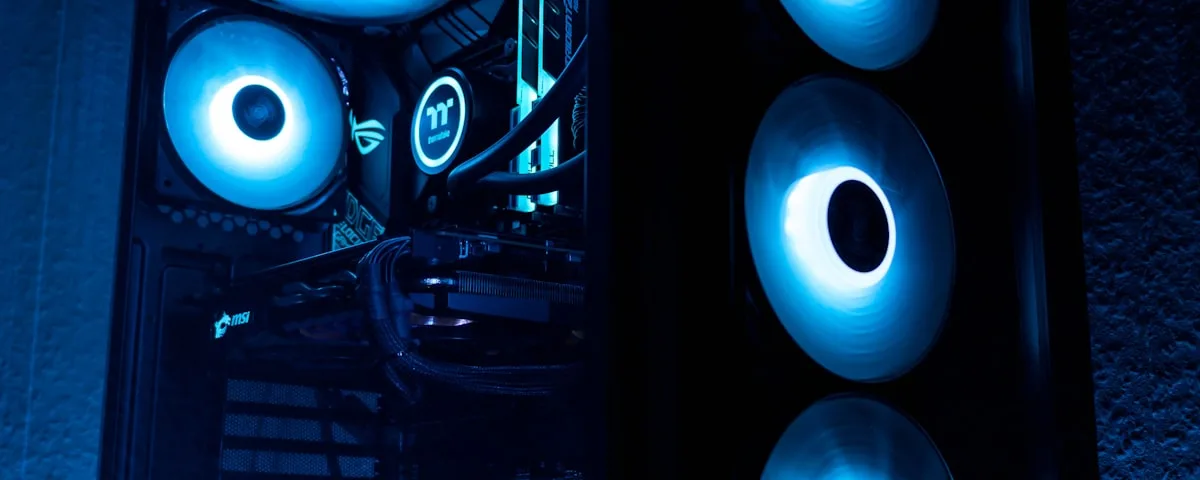
If you live in Perth, you already know what summer means: weeks of 35–45°C days, hot nights, and the kind of sustained heat that pushes every cooling system to its limits. Your computer's cooling system was designed for this — but only if it's clean and in good working order.
Dust buildup is the silent killer of computers. A PC that runs perfectly fine in winter can overheat and shut itself down — or worse, damage components permanently — once ambient temperatures rise. The good news: a bit of maintenance before the hot months can make all the difference.
Why Summer Is Dangerous for Computers
Every computer generates heat. The CPU (processor) and GPU (graphics card) are the biggest heat sources. They're cooled by fans that pull in cool air from the environment and exhaust hot air out the other side.
Here's the problem: if your room is already 35°C, the air coming in is already hot. The cooler has less thermal headroom to work with. Now add dust-clogged fans and heatsinks, and you have a system that simply can't shed heat fast enough. Modern computers will throttle performance to protect themselves — your PC gets sluggish — and if it gets too hot, it'll shut down completely. Sustained high temperatures degrade components over time, shortening the life of your hardware.
Step 1: Open It Up and Inspect
Before you do anything else, power the computer down completely, unplug it, and open the side panel. Take a look inside with a torch. What you're looking for:
- Thick grey dust mats on fan blades and heatsink fins
- Dust bunny accumulations on intake vents and filters
- Dust packed into the GPU's heatsink fins
- Debris blocking the exhaust vents at the rear and top of the case
Even light dust accumulation reduces airflow. Heavy buildup can reduce cooling efficiency by 30–50%. If you haven't cleaned your PC in over 12 months — or ever — there's almost certainly significant buildup inside.
Step 2: Dust Cleaning — the Right Way
The safest tool for computer cleaning is compressed air in a can (available at hardware and office supply stores) or a small electric air blower designed for electronics. Do not use a regular household vacuum cleaner — the static discharge can damage components.
Take the PC outdoors or into a garage if possible, because you'll be blowing dust out and you don't want it going back into the room air. With the PC unplugged:
- Hold fan blades still while blasting them — letting fans spin from compressed air can damage the bearings
- Blow through heatsink fins from multiple angles until dust comes out clean
- Clear the GPU heatsink and fan thoroughly
- Wipe down case vents and any dust filters (these often pull out for easy cleaning)
- Blow out the power supply vents (don't open the power supply itself)
Step 3: Check and Replace Thermal Paste
Thermal paste is the thin layer of heat-conductive compound between your CPU (and sometimes GPU) and its heatsink. It fills microscopic gaps in the metal surfaces to ensure maximum heat transfer. Over time — typically 3–5 years — thermal paste dries out, cracks, and becomes much less effective.
If your CPU temperatures are running higher than they used to, or your computer is shutting down under load despite clean fans, dried-out thermal paste is often the culprit. Replacing it is a moderately involved job — it requires removing the CPU cooler, cleaning off the old paste with isopropyl alcohol, and applying fresh compound in the correct amount (a small pea-sized dot is the standard for most CPUs).
If you're not comfortable doing this yourself, it's a quick and inexpensive job for a repair shop. We do these regularly at PC Madness.
Step 4: Check Your Fan Function
While your case is open, power the PC on and observe your fans. Every fan should be spinning smoothly and quietly. Listen for:
- Grinding or rattling (failing bearing — fan needs replacing soon)
- High-pitched whining (also bearing wear)
- Any fan that isn't spinning at all when the others are
A fan that sounds wrong should be replaced before summer. Case fans are inexpensive, and it's far cheaper to replace a fan than to replace a GPU or CPU that overheated because of it.
Step 5: Improve Case Airflow
While you have the case open, check how cables are routed inside. Cable clutter inside the case blocks airflow. Modern cases typically have a behind-the-motherboard-tray area for cable management — if your cables are running through the main chamber, consider routing them more neatly, or at least zip-tying loose bundles out of the way of the main airflow path.
Also check that cool air can actually get in. If the PC is pushed flush against a wall with only 1–2cm of clearance at the back, that restricts exhaust. Give it breathing room — at least 10–15cm at the rear and top exhaust points.
Laptops: Different Problem, Same Enemy
Laptops are even more vulnerable to heat than desktops because they're more compact with less airflow. The single exhaust vent at the side or back is the laptop's only way to shed heat, and when it's packed with lint and dust, temperatures spike fast.
For most laptops, a can of compressed air aimed at the exhaust vents will blow accumulated dust out through the heatsink fins. You'll hear it come loose. Do this every 6–12 months. If your laptop fan sounds like a jet engine and is very hot to touch even on light tasks, bring it in — it probably needs a full disassembly clean and thermal paste replacement.
Also consider a laptop cooling pad for summer — they sit under the laptop and provide additional airflow through the bottom intake vents, which can drop temperatures by 5–10°C during sustained use.
When to Get Professional Help
Some cleaning and maintenance tasks are simple DIY jobs. Others aren't:
- If you're not comfortable opening your desktop, bring it in — a full clean takes us about 30 minutes
- Laptops are generally harder to open and clean properly without the right tools and knowledge of the specific model
- Thermal paste replacement requires removing the cooler, which can be straightforward or tricky depending on the socket type
- If your computer is already overheating and shutting down, don't wait — bring it in before summer proper arrives
At PC Madness we offer pre-summer PC servicing — full internal clean, thermal paste replacement, and fan inspection. It's one of the best preventative investments you can make in your hardware. A desktop service typically costs less than an hour of labour, and it can add years to your computer's reliable life.
Quick Summer Checklist
- Clean dust from all fans, heatsinks, and vents
- Replace thermal paste if it's over 3 years old or temperatures are high
- Test all fans for smooth, quiet operation
- Tidy cable routing for better airflow
- Give the PC physical space — don't push it into enclosed, unventilated spots
- Consider a laptop cooling pad for sustained use on hot days
- Monitor temperatures with a free tool like HWMonitor (Windows) or iStatMenus (Mac)
Need a pre-summer PC service? Call PC Madness on 08 9250 4554 or drop into our Midland workshop at 2C Stafford Street. Mon–Fri, 8am–4pm. We'll have your computer ready for the heat.